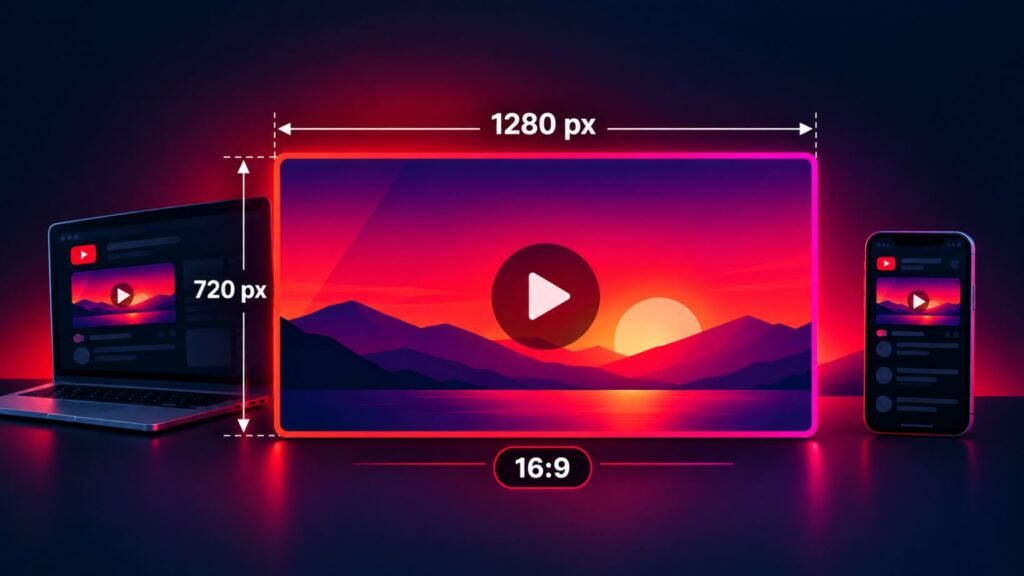
A blurry or badly cropped thumbnail can cost you clicks before anyone watches a second of your video. A 4K thumbnail checker is a free online tool that tests your thumbnail’s resolution, aspect ratio, file size and format, so you can fix problems before you upload. In this guide, you’ll learn what a 4K thumbnail checker measures, which YouTube thumbnail specs matter, and how to make your thumbnails look sharp on every screen.
Table of Content
- What Is a 4K Thumbnail Checker?
- Why Thumbnail Quality Matters on YouTube
- YouTube Thumbnail Specs at a Glance
- Do You Really Need a 4K Thumbnail?
- How to Use a 4K Thumbnail Checker
- What the Checker Actually Tests
- Common Thumbnail Problems and How to Fix Them
- Tips for Designing a Sharper Thumbnail
- FAQs
- Conclusion
What Is a 4K Thumbnail Checker?
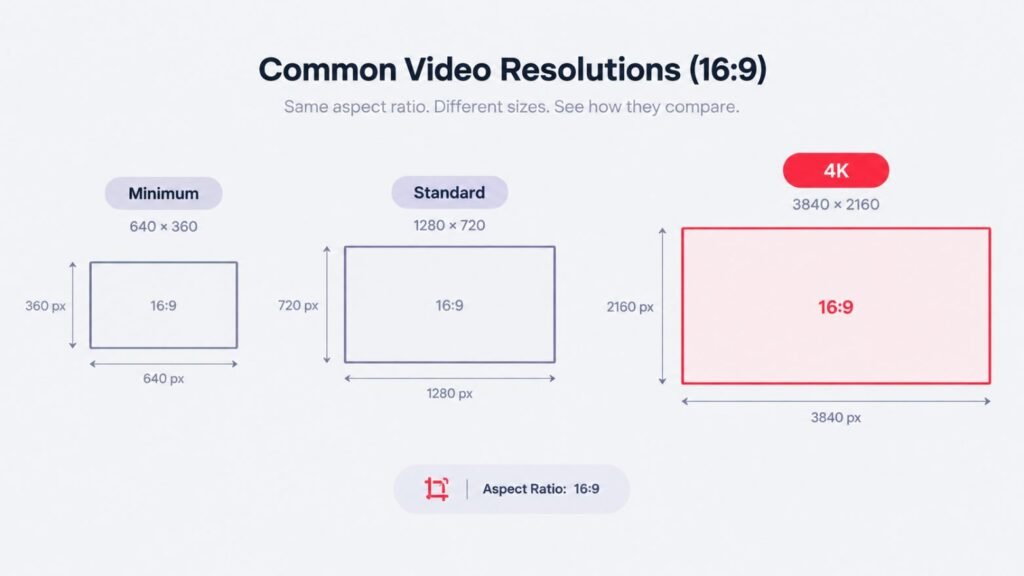
A 4K thumbnail checker analyzes an image file and tells you whether it meets YouTube’s requirements and whether it’s high enough in quality to look good on large screens. “4K” refers to a resolution of 3840×2160 pixels, which keeps the same 16:9 shape YouTube uses for thumbnails.
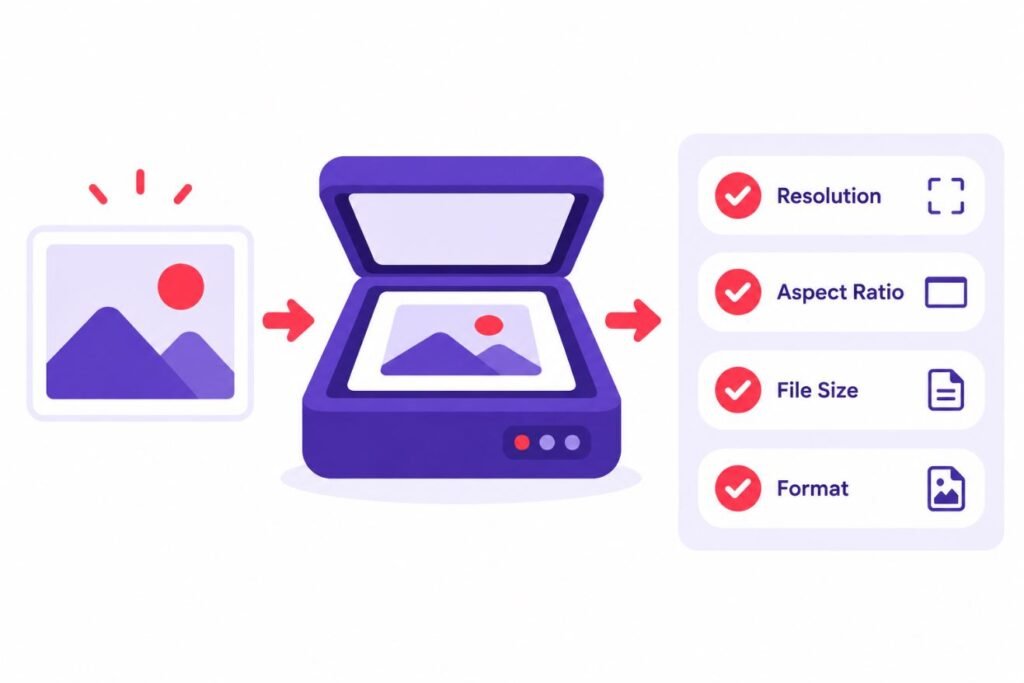
Instead of uploading an image and hoping for the best, you drop it into the checker and get instant feedback. It reads the image’s dimensions, calculates its aspect ratio, and compares the results against YouTube’s published thumbnail guidelines. Our free YouTube thumbnail checker does this without requiring a signup.
Why Thumbnail Quality Matters on YouTube
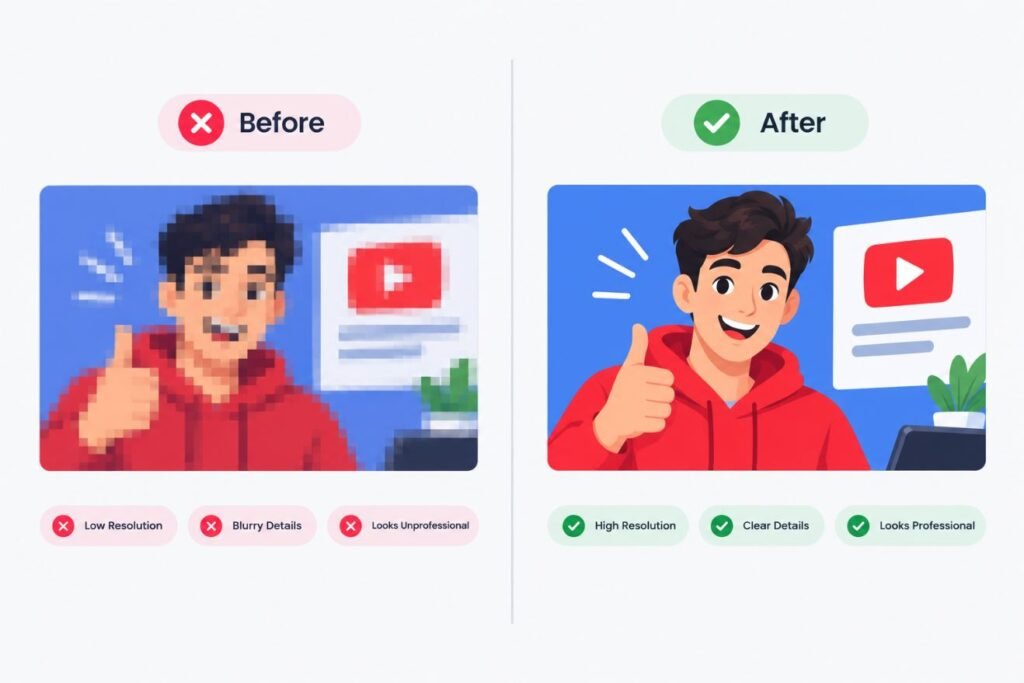
Your thumbnail is the first thing viewers judge, along with your title. On a phone it appears small, but on a 4K TV or a large monitor it fills a lot of space, and any softness or compression becomes obvious.
A low-quality thumbnail can:
- Look unprofessional, which makes viewers less likely to trust your content
- Get cropped or letterboxed if the aspect ratio is wrong
- Fail to upload if the file is too large or in an unsupported format
- Blur text, making your key words hard to read at small sizes
Using a 4K thumbnail checker catches these issues in seconds, which is much faster than uploading, previewing, and re-uploading.
YouTube Thumbnail Specs at a Glance
Before you run a check, it helps to know the numbers you’re aiming for. According to YouTube’s official Help Center, custom thumbnails should follow these guidelines:
| Spec | Requirement |
| Recommended resolution | 1280 × 720 pixels |
| Minimum width | 640 pixels |
| Aspect ratio | 16:9 |
| File formats | JPG, PNG, GIF (static) |
| Maximum file size | 2 MB (confirm the current limit in YouTube Studio) |
| 4K equivalent | 3840 × 2160 pixels (also 16:9) |
YouTube’s limits can change, so always confirm the latest numbers in YouTube Studio when you upload.
Do You Really Need a 4K Thumbnail?
Here’s the honest answer: YouTube’s official recommendation is 1280×720, so a 4K thumbnail isn’t required. Most viewers will see a perfectly sharp thumbnail at that size.
However, designing at a higher resolution has real benefits:
- Sharper text and edges on large displays and TVs
- More room to crop or reframe your design without losing quality
- Better results after compression, since YouTube re-processes every image you upload
- Future-proofing, as screens keep getting sharper
The catch is file size. A 3840×2160 image can easily exceed the upload limit, so you may need to compress it. That’s exactly where a 4K thumbnail checker helps: it shows you whether your high-resolution file still meets the size and format rules.
How to Use a 4K Thumbnail Checker
Using the tool takes under a minute:
Step 1: Prepare Your Thumbnail
Export your design from Canva, Photoshop, Figma, or whichever editor you use. Save it as a JPG or PNG at your target resolution.
Step 2: Upload the Image
Open the YouTube Creator Kit thumbnail checker and upload your file. Nothing needs to be installed, and no account is required.
Step 3: Review the Results
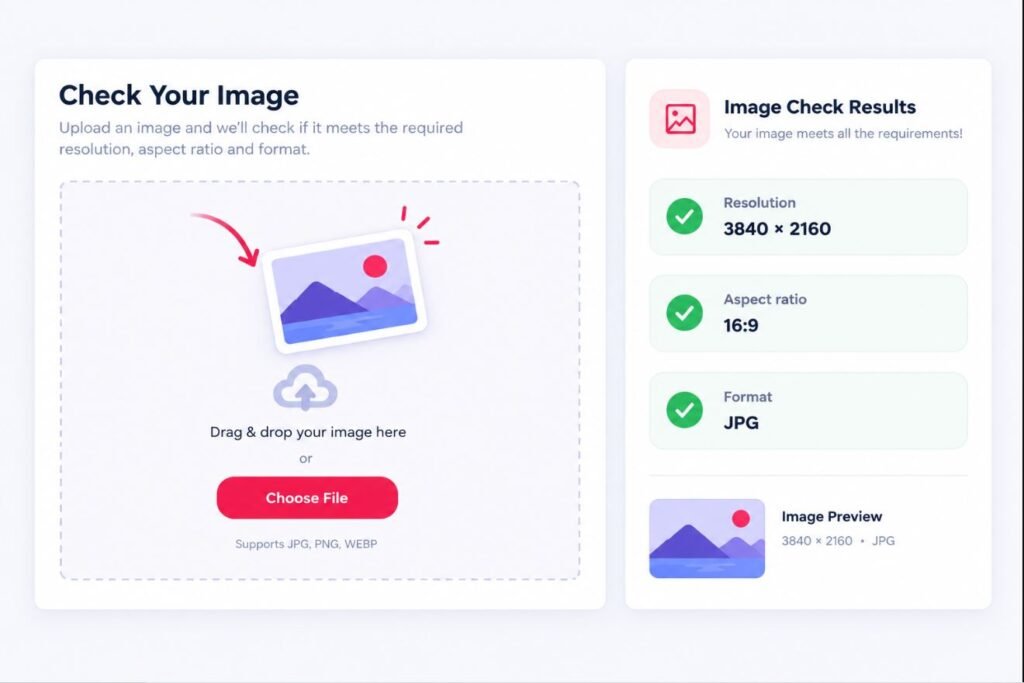
The checker displays your image’s resolution, aspect ratio, file size and format, and flags anything that falls outside YouTube’s guidelines.
Step 4: Fix and Re-Test
If something fails, adjust your export settings and run the check again until every item passes. Then upload the thumbnail in YouTube Studio with confidence.
What the Checker Actually Tests
Each item the 4K thumbnail checker reviews affects how your thumbnail appears:
Resolution. The pixel dimensions of your image. Too low, and the thumbnail looks pixelated when enlarged. YouTube requires at least 640 pixels in width.
Aspect ratio. YouTube displays thumbnails in 16:9. An image in a different ratio (like 4:3 or a square) gets cropped or shown with black bars.
File size. Oversized files are rejected at upload. The checker tells you if you’re over the limit so you can compress before trying.
File format. Only JPG, PNG, and GIF are supported. Other formats, such as WebP or HEIC, may not upload.
Overall readiness. A quick pass or fail view so you know instantly whether the file is ready.
Common Thumbnail Problems and How to Fix Them
Problem: The thumbnail looks blurry after upload.
This usually means the original resolution was too low or the image was over-compressed. Export at 1920×1080 or higher, use high-quality JPG settings, and avoid saving the same file repeatedly.
Problem: The upload fails with a file size error.
Compress the image with a tool like Squoosh or TinyPNG. Aim to keep quality high while staying under the limit.
Problem: Black bars appear around the image.
Your image isn’t 16:9. Resize the canvas to 1920×1080 or 3840×2160 and rebuild the layout.
Problem: Text is hard to read on mobile.
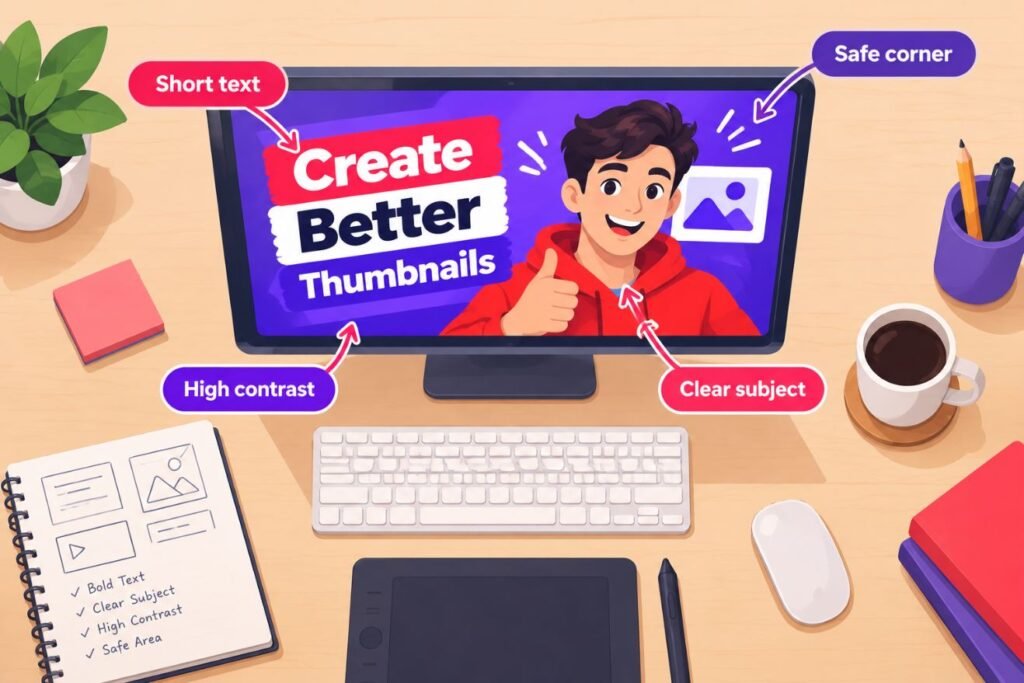
Use bold fonts, high contrast, and keep text short, ideally 3 to 5 words. View your design at a small size before exporting.
Problem: Colors look dull.
YouTube applies compression, which can flatten colors. Slightly boost saturation and contrast before exporting, but don’t overdo it.
Tips for Designing a Sharper Thumbnail
⦁ Design big, export smart. Work at 1920×1080 or 3840×2160, then export to meet the file size limit.
⦁ Keep one focal point. A close-up face or one clear object reads better than a crowded scene.
⦁ Use high contrast. Light text on dark backgrounds, or the reverse, stays legible at small sizes.
⦁ Mind the corner. YouTube places the video timestamp in the bottom-right corner, so keep important elements away from it.
⦁ Test on multiple screens. Check how your design looks on your phone and your computer.
⦁ Check before you publish. Always run the file through the 4K thumbnail checker as a last step.
For more design help, read our guide to YouTube thumbnail sizes and formats.
FAQs
What is a 4K thumbnail checker?
A 4K thumbnail checker is an online tool that tests your thumbnail’s resolution, aspect ratio, file size, and format against YouTube’s guidelines, so you can find problems before uploading.
What is the best YouTube thumbnail size?
YouTube recommends 1280×720 pixels at a 16:9 aspect ratio. Higher resolutions like 1920×1080 or 3840×2160 also work, as long as they stay in 16:9 and within the file size limit.
Does YouTube support 4K thumbnails?
YouTube accepts high-resolution thumbnails in 16:9, including 3840×2160, as long as the file meets the size and format requirements. It will still display them scaled to fit the player or feed.
Why is my YouTube thumbnail blurry?
Common causes include low resolution, heavy compression, a wrong aspect ratio, or repeated re-saving of the same image. Export a fresh high-quality version and run it through a thumbnail checker.
Is this thumbnail checker free?
Yes. The YouTube Creator Kit tool is free, needs no signup, and you can test as many thumbnails as you want.
What file format is best for thumbnails?
JPG works well for photographic designs and keeps file sizes small. PNG is better for sharp text and graphics, but it produces larger files.