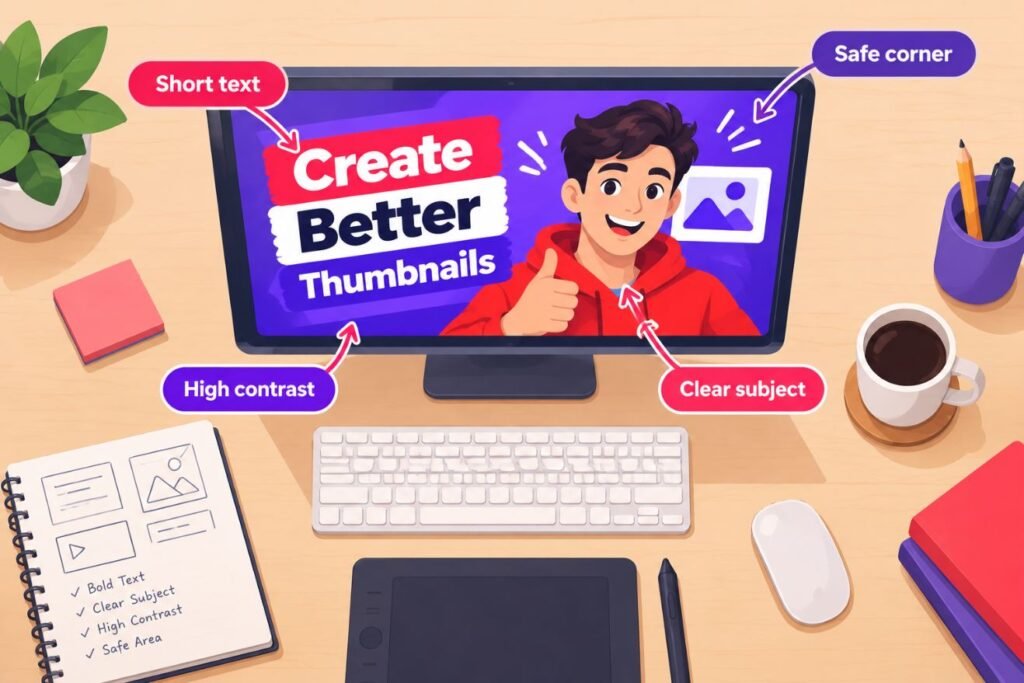
Getting the YouTube thumbnail size wrong is one of the easiest ways to make a great video look amateur. A thumbnail with the wrong dimensions gets cropped, one in the wrong format can look blurry, and a file that is too big simply won’t upload. The good news: the rules are simple once you know them. This guide covers the exact YouTube thumbnail dimensions, supported formats, file size limits, safe zones, and a step-by-step workflow you can reuse for every video.
Table of Contents
- YouTube Thumbnail Size at a Glance
- Best YouTube Thumbnail Dimensions (and Why 1280×720 Still Works)
- YouTube Thumbnail Aspect Ratio Explained
- YouTube Thumbnail File Size Limits
- Best Thumbnail Formats: JPG vs PNG vs GIF
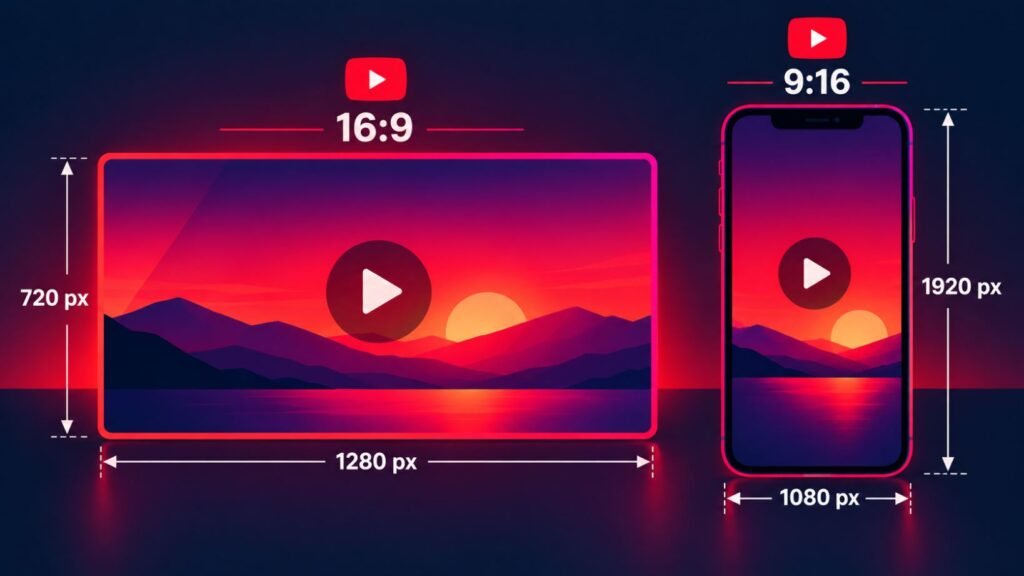
- YouTube Shorts Thumbnail Size
- Safe Zones: Where Not to Put Text
- Thumbnail Sizes for Different Devices
- A Practical Workflow: Design, Export, Check, Upload
- How to Upload a Custom Thumbnail
- Common Thumbnail Problems and Fixes
- Pre-Upload Checklist
- FAQs
YouTube Thumbnail Size at a Glance
Here is the quick reference. Save it, screenshot it, or bookmark this page.
| Spec | Recommended |
|---|---|
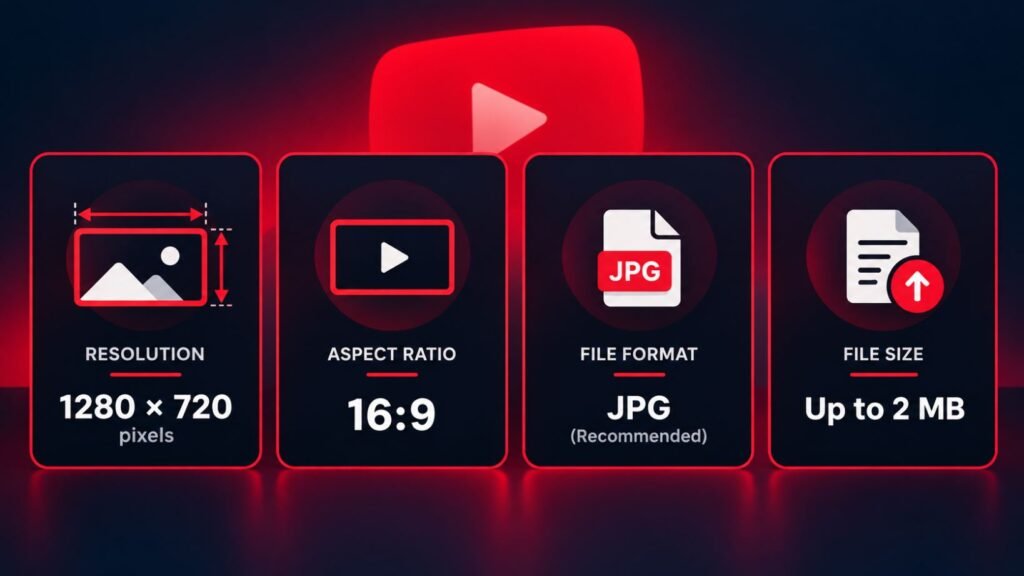
| Everyday size | 1280 × 720 pixels |
| Higher-quality option | 1920 × 1080 pixels, up to 3840 × 2160 (4K) |
| Minimum width | 640 pixels |
| Aspect ratio | 16:9 |
| Formats | JPG, PNG, GIF (static) |
| Max file size | Depends on where you upload from (see the file size section below) |
| Shorts thumbnail | 9:16 vertical, such as 1080 × 1920 |
Best YouTube Thumbnail Dimensions (and Why 1280×720 Still Works)
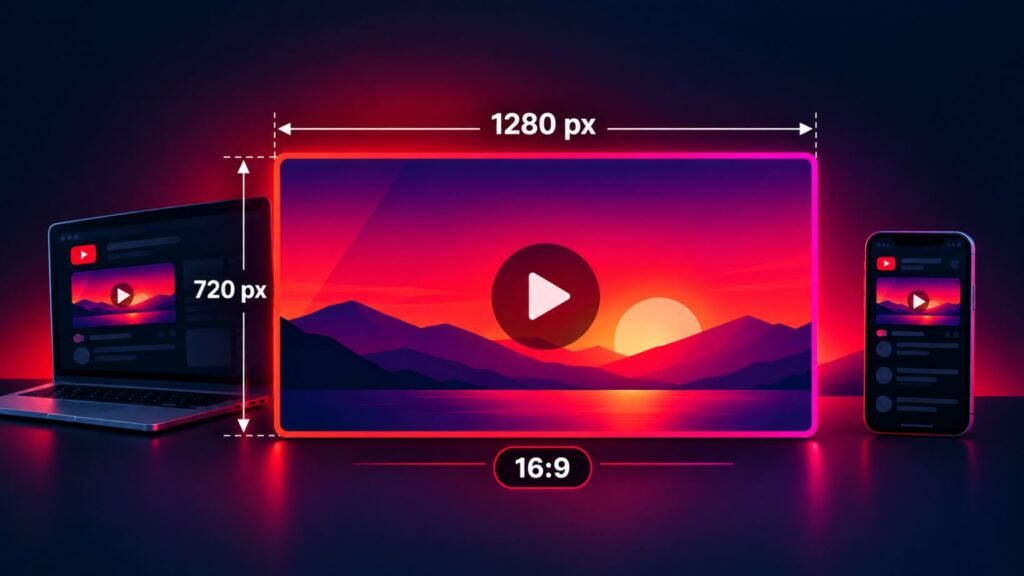
For years, 1280 × 720 pixels has been the standard YouTube thumbnail size, and it remains a safe choice. It is sharp enough for phones, laptops, and most TVs, and the files stay small.
YouTube’s own guidance now says your custom thumbnail should be as large as possible, so higher resolutions are fully acceptable. Here is how to choose:
| Resolution | Best for | Trade-off |
|---|---|---|
| 1280 × 720 | Most creators, fast workflow | Slightly soft on very large TVs |
| 1920 × 1080 | Sharper text and edges on big screens | Larger files |
| 3840 × 2160 (4K) | Maximum sharpness, channels watched on TV | Large files, may need compression, especially on mobile uploads |
A simple rule: design at 1920 × 1080 or higher, then export at the highest quality that fits your file size limit. Designing big gives you room to crop and keeps text crisp. If you want the full 4K story, read our guide to the 4K thumbnail checker.
YouTube Thumbnail Aspect Ratio Explained
The aspect ratio of a standard YouTube video thumbnail is 16:9. That means for every 16 pixels of width, there are 9 pixels of height. Any of these sizes is 16:9:
- 1280 × 720
- 1920 × 1080
- 2560 × 1440
- 3840 × 2160
If your image is not 16:9, YouTube will crop it or add bars around it. A square or 4:3 image designed in a social media template is the most common cause of a badly cropped thumbnail. Always start your canvas at 16:9.
YouTube Thumbnail File Size Limits
This is the section where creators get caught out, because the limit has changed over time and different websites still quote different numbers.
As of the latest guidance we found, YouTube applies different limits depending on where you upload from: roughly 2 MB for thumbnails uploaded on mobile and 50 MB for video thumbnails uploaded on desktop. Many older guides still say 2 MB across the board, which is why you will see conflicting advice online.
What this means in practice:
- Uploading from a computer in YouTube Studio gives you far more room, so even a high-quality 4K file usually fits.
- Uploading from a phone is the strict case. If you work mobile-first, keep the file under 2 MB.
- Even when you can upload huge files, smaller is faster. A file between 400 KB and 1.5 MB is usually plenty for a sharp 1280×720 or 1920×1080 thumbnail.
- Always check the actual file size. Pixel dimensions alone do not tell you whether the file fits.
Because YouTube changes these rules occasionally, confirm the current limit in YouTube Studio’s upload dialog or the YouTube Help Center before you publish.
Best Thumbnail Formats: JPG vs PNG vs GIF
YouTube accepts JPG, PNG, and static GIF files for custom thumbnails. Here is how to choose:
| Format | Best for | Pros | Cons |
|---|---|---|---|
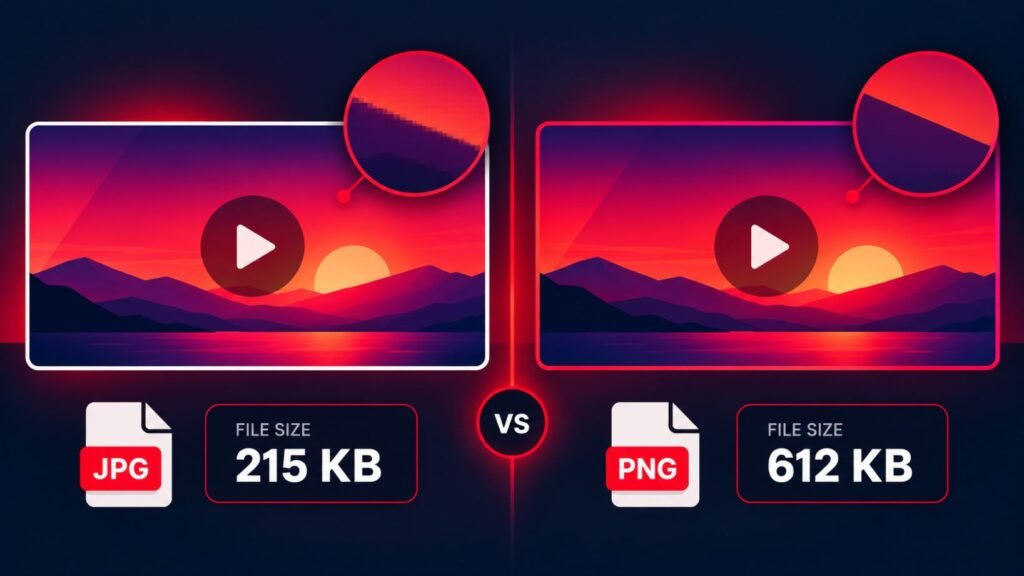
| JPG | Photos, faces, most thumbnails | Small files, wide support | Slight quality loss, soft edges on text if compressed too hard |
| PNG | Flat graphics, sharp text, logos | Crisp edges, no quality loss | Large files, especially with photos |
| GIF | Rarely used | Supported, static only | Limited colors, poor quality for photos |
Our recommendation: export as JPG at 85-95% quality for almost every thumbnail. It gives the best balance of sharpness and file size. Switch to PNG only when your design is mostly flat color and text, and the file still fits the limit.
Tip: do not keep re-saving the same JPG. Each save compresses it again, which adds artifacts. Always export from your original design file.
YouTube Shorts Thumbnail Size
Shorts use a vertical format, so their thumbnails are 9:16, not 16:9. A common working size is 1080 × 1920 pixels.
A few practical points:
- Custom thumbnails for Shorts have been rolling out in YouTube Studio on desktop, and your account must be verified.
- Keep key content in the center, because the Shorts interface covers the edges. Our Shorts safe zone checker shows which areas get hidden.
- If you upload a 16:9 thumbnail for a vertical video, YouTube may show an auto-cropped version in some feeds, so design with the crop in mind.
YouTube is still adjusting how Shorts thumbnails work, so check the current options in Studio.
Safe Zones: Where Not to Put Text
Size is only half of the story. Even a perfectly sized thumbnail fails if something important is covered up.
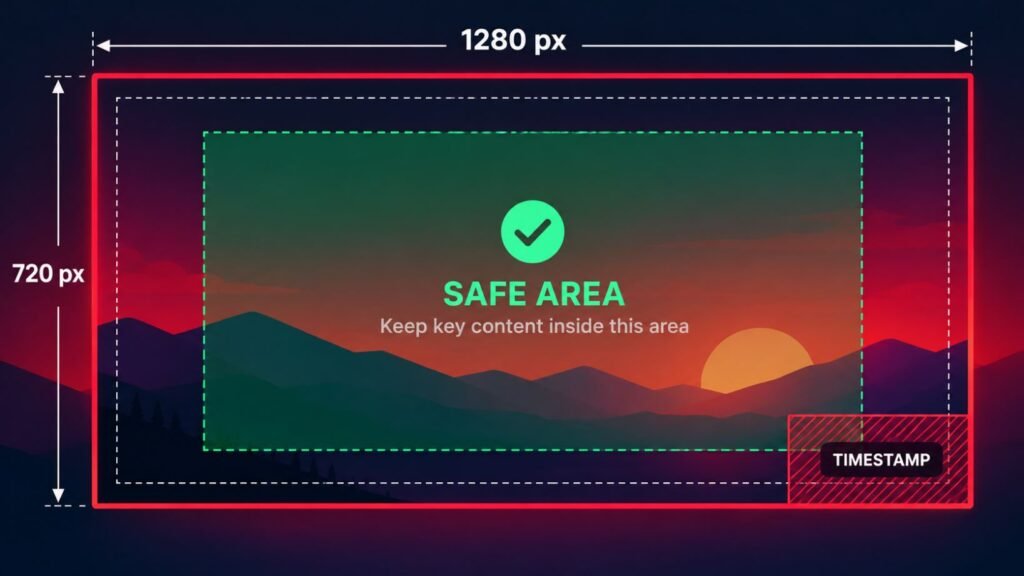
The timestamp zone. YouTube places the video length badge in the bottom-right corner of the thumbnail. Keep logos, faces, and text out of that corner.
The mobile shrink zone. On a phone feed, a thumbnail can shrink to roughly the width of your thumb. Text that is smaller than about 5% of the image height becomes unreadable. Use three to five bold words at most.
The edge margin. Leave a margin of about 5% on each side so nothing is clipped on different layouts or cropped in suggested video cards.
Sidebar and suggested videos. These display thumbnails very small. A busy collage turns into noise at that size, so favor one clear focal point.
Thumbnail Sizes for Different Devices
You only upload one thumbnail, but it appears in several sizes. Here is where yours will show up:
| Where it appears | Typical display |
|---|---|
| Home feed on mobile | Small to medium, full width |
| Home feed on desktop | Medium grid card |
| Search results | Medium, with title beside it |
| Suggested videos sidebar | Very small |
| Smart TV home screen | Large |
| Embedded players | Depends on the website |
That range is exactly why we recommend designing big and testing small. Shrink your design to about the size of a postage stamp and ask: can I still read it and understand the video?
A Practical Workflow: Design, Export, Check, Upload
Use this routine for every video and thumbnail size issues mostly disappear.
1. Start with a 16:9 canvas. In Canva, Photoshop, Figma, or Photopea, create a 1920 × 1080 canvas (or 3840 × 2160 if you want 4K).
2. Design for small screens first. Large faces, bold text, high contrast, one focal point.
3. Respect the safe zones. Nothing important in the bottom-right corner or the outer 5% margin.
4. Export as JPG at 85-95% quality. Use PNG only when you need razor-sharp flat graphics.
5. Check the file size. If you will upload from mobile, aim under 2 MB. If it is too big, compress with a tool like Squoosh or TinyPNG.
6. Run it through a checker. Our YouTube thumbnail checker confirms resolution, aspect ratio, format, and size in seconds.
7. Upload and preview. After upload, look at the thumbnail on a phone and a desktop before you publish.
How to Upload a Custom Thumbnail
- Sign in to YouTube Studio and open Content.
- Select the video you want to edit.
- Under Thumbnail, click Upload file and choose your image.
- Review the preview, then click Save.
If you do not see the upload option, your channel probably needs to be verified. Verify your account with a phone number in YouTube Studio settings, then try again. There is also a daily limit on custom thumbnail uploads, which varies by channel, so if you hit it, wait 24 hours.
Common Thumbnail Problems and Fixes
My thumbnail looks blurry. The resolution was probably too low, or the file was compressed too hard. Export a fresh JPG at 1920×1080 or higher at 85-95% quality.
The upload fails with a size error. Your file is over the limit for the device you are using. Compress it, or upload from a desktop where the limit is higher.
There are black bars around my thumbnail. The aspect ratio is not 16:9. Rebuild the canvas at 16:9.
My text is cut off. It is probably sitting in the timestamp corner or too close to an edge. Move it inward.
The colors look dull after upload. YouTube re-compresses images. Add a little extra contrast and saturation before exporting, without overdoing it.
I cannot upload a custom thumbnail at all. Verify your channel, and check that you have no active restrictions on custom thumbnails.
Pre-Upload Checklist
- Canvas is 16:9 (1280×720, 1920×1080, or 3840×2160)
- Width is at least 640 pixels
- Format is JPG, PNG, or static GIF
- File size is within the limit for your upload method
- Nothing important in the bottom-right timestamp corner
- Text is large, bold, and readable at small size
- One clear focal point
- Checked with the YouTube thumbnail checker
- Previewed on both phone and desktop
FAQs
What is the best YouTube thumbnail size?
The safest everyday YouTube thumbnail size is 1280 × 720 pixels at a 16:9 aspect ratio. For sharper results on large screens, design at 1920 × 1080 or 3840 × 2160 and export within your file size limit.
What is the minimum YouTube thumbnail size?
The minimum width is 640 pixels, and the image must keep a 16:9 aspect ratio. Anything smaller looks pixelated and may be rejected.
What file formats does YouTube allow for thumbnails?
YouTube supports JPG, PNG, and static GIF. JPG is the best choice for most thumbnails because it keeps files small while looking sharp.
What is the maximum YouTube thumbnail file size?
The limit depends on how you upload. Current guidance points to about 2 MB on mobile and 50 MB on desktop, though older sources still quote 2 MB across the board. Check YouTube Studio for the exact limit you see.
Can a YouTube thumbnail be 1920×1080?
Yes. 1920 × 1080 is 16:9 and works well. Just make sure the file size fits the limit for your upload method.
What is the YouTube Shorts thumbnail size?
Shorts thumbnails are vertical, 9:16, with 1080 × 1920 pixels as a common working size. Keep key details in the center of the frame.
Why does my thumbnail look blurry on YouTube?
The most common causes are low resolution, heavy compression, and re-saving the same JPG several times. Re-export from your original design at a higher resolution and quality.
Does thumbnail size affect views?
Size itself is not a ranking factor, but a sharp, correctly cropped, readable thumbnail helps your click-through rate, which does influence how often YouTube recommends your video.
Conclusion
The right YouTube thumbnail size is simple: a 16:9 image, at least 640 pixels wide, ideally 1280 × 720 or larger, saved as a JPG or PNG, within the file size limit for your device. Add smart safe zones and test at small size, and your thumbnails will look sharp everywhere they appear.
Before your next upload, run your file through our free YouTube thumbnail checker and publish with confidence.